Run a Example Code
This section provides a hands-on demonstration of how to use artemis_crib with an example code.
Step 1: Log In to the Working Directory
Log in to the user’s working directory using the artlogin command:
artlogin username
This command loads the necessary environment variables for the user.
Once logged in, you can start the artemis interpreter:
a
Note: If connected via SSH, ensure X11 forwarding is configured or use a VNC server to view the canvas. Refer to the VNC server sections for setup details.
When the artemis interpreter starts, you should see the prompt:
artemis [0]
If errors occur, verify that the source code has been built and that the thisartemis-crib.sh file has been sourced.
Step 2: Load the Example Steering File
artemis uses a YAML-based steering file to define data and analysis settings.
For this example, use the steering file steering/example/example.tmpl.yaml.
Load the file with the add command with the path of the steering file:
artemis [] add steering/example/example.tmpl.yaml NUM=0001 MAX=10
- NUM: Used for file naming.
- MAX: Specifies the maximum value for a random number generator.
These arguments are defined in the steering file. Refer to the Steering files section.
Step 3: Run the Event Loop
Start the event loop using the resume command (or its abbreviation, res):
artemis [] res
Once the loop completes, you’ll see output like:
Info in <art::TTimerProcessor::PostLoop>: real = 0.02, cpu = 0.02 sec, total 10000 events, rate 500000.00 evts/sec
To pause the loop, use the suspend command (abbreviation: sus):
artemis [] sus
Step 4: View Histograms
Listing Histograms
Use the ls command to list available histograms:
artemis [] ls
Example output:
 artemis
>   0 art::TTreeProjGroup test2           test (2)
    1 art::TTreeProjGroup test            test
    2 art::TAnalysisInfo analysisInfo
The histograms are organized into directories represented by the art::TTreeProjGroup class.
This class serves as a container for multiple histograms, making it easier to manage related data.
Navigate to a histogram directory using its ID or name:
artemis [] cd 1
or:
artemis [] cd test
Once inside the directory, use the ls command to view its contents:
artemis [] ls
 test
>   0 art::TH1FTreeProj hRndm           random value
Here, art::TH1FTreeProj is a customized class derived from TH1F, designed for efficient analysis within artemis.
Drawing Histograms
Draw a histogram using the ht command with its ID or name:
artemis [] ht 0
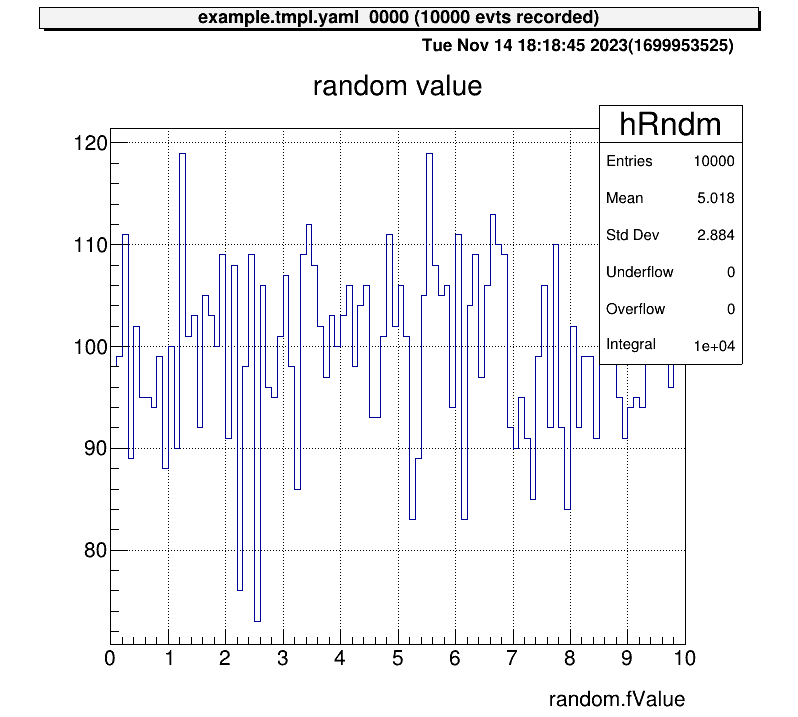
To return to the root directory, use:
artemis [] cd
To move one directory up, use:
artemis [] cd ..
This moves you up one level in the directory structure.
Step 5: View Tree Data
After the event loop, a ROOT file containing tree objects is created.
List available files using fls:
artemis [] fls
 files
    0 TFile output/0001/example_0001.tree.root            (CREATE)
Navigate into the ROOT file using fcd with the file ID:
artemis [] fcd 0
Listing Branches
List tree branches with branchinfo (or br):
artemis [] br
random art::TSimpleData
View details of a branch’s members and methods:
artemis [] br random
art::TSimpleData

Data Members


Methods

                  Bool_t   CheckTObjectHashConsistency
            TSimpleData&   operator=
            TSimpleData&   operator=

See also

    art::TSimpleDataBase<double>
To explore inherited classes, use classinfo (or cl):
artemis [] cl art::TSimpleDataBase<double>
art::TSimpleDataBase<double>

Data Members

                  double   fValue

Methods

                    void   SetValue
                  double   GetValue
                  Bool_t   CheckTObjectHashConsistency
  TSimpleDataBase<double>&   operator=

See also

    art::TDataObject       base class for data object
Drawing Data from Trees
Unlike standard ROOT files, data in artemis cannot be accessed directly through branch names.
Instead, use member variables or methods of the branch objects.
Example:
artemis [] tree->Draw("random.fValue")
artemis [] tree->Draw("random.GetValue()")